How to Add Request for Quote (RFQ) to Magento 2 (2026 Updated)
Request for Quote (RFQ) in Magento 2 lets B2B customers add products to a cart, request a custom price instead of checking out, and receive a negotiated proposal — all without a separate quote platform. This guide shows you how to add RFQ to any Magento 2 store using MageMe EasyQuote: install via Composer, configure customer-group rules, set up email notifications, manage quotes in the admin, and convert an approved quote to an order with a single click. Compatible with Magento 2.4.4+ on Luma, Breeze, and Hyvä.
Out of the box, Magento 2 Community has no quote workflow at all: every product on the storefront has a fixed price, and the only way to complete a purchase is through the checkout. Adobe Commerce B2B adds a native quote module, but it’s tied to the Enterprise licence and its workflow is rigid. For everyone else — every B2B store running Community or wanting a simpler lifecycle — you need a third-party RFQ extension.
This tutorial walks through the three approaches available to you, shows the step-by-step setup for the native-cart RFQ pattern (the simplest and the one we recommend for most B2B stores), and explains how to tie in HidePrice or WebForms for advanced scenarios.
What’s in this guide
- chevron_right Why B2B stores need Request for Quote
- chevron_right Three approaches to RFQ in Magento 2
- chevron_right Choosing an RFQ extension
- chevron_right Install EasyQuote via Composer
- chevron_right Configure quote visibility and customer groups
- chevron_right Set up email notifications and templates
- chevron_right Manage quotes in the admin: review, negotiate, approve
- chevron_right Advanced features: tier pricing, proposals, quick checkout
- chevron_right Combine with HidePrice and WebForms
- chevron_right Key takeaways
- chevron_right FAQ
Why B2B stores need Request for Quote in Magento 2
Magento 2’s catalogue model assumes a consumer transaction: one product, one price, one checkout. B2B doesn’t work that way. A wholesaler ordering 500 units at a negotiated discount, a contractor requesting a project estimate, a dealer asking for a one-off bulk quote — none of these fit the standard checkout. They all need a conversation, a proposal, and an approval before money changes hands.
Without an RFQ system, B2B merchants usually end up with one of these workarounds:
Contact forms + email threads
Customer submits a contact form with free-text description, sales replies by email, price agreed after five messages. No structured record, no products linked, no conversion tracking.
Hidden prices + login gates
Prices are hidden from guests; customers have to create an account to see anything. Huge friction, low account signup rate, guests bounce before the sales team ever hears from them.
Custom price lists per group
Different customer groups see different prices, but there’s no way to negotiate beyond the tier. Every unusual deal becomes an out-of-band email exchange.
Adobe Commerce B2B module
Powerful but enterprise-licence only. Not an option for Community stores or smaller B2B operations that need a quote flow without the Adobe Commerce price tag.
A dedicated RFQ extension replaces all four workarounds with a single structured workflow: cart → quote request → admin review → negotiated proposal → customer approval → real order.
Three approaches to RFQ in Magento 2
Before installing anything, decide which quote model fits your store. There are three:
Native cart quotes
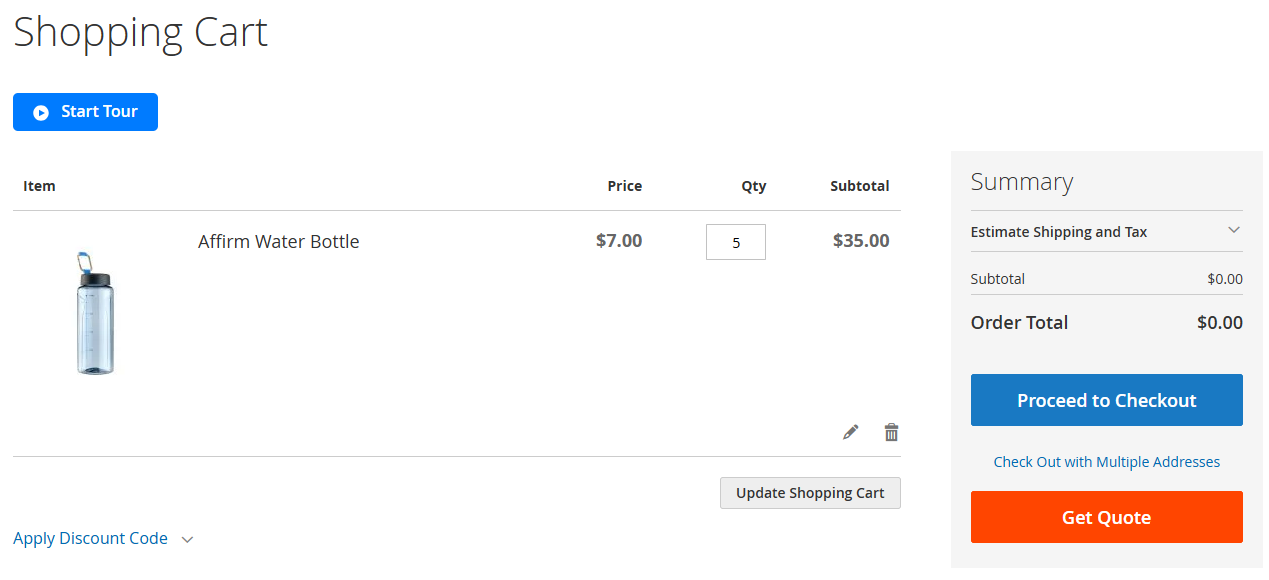
Customers use the standard Magento cart. A “Request a Quote” button sits next to “Proceed to Checkout”. One cart, two outcomes.
Best for: Stores mixing retail + B2B, wholesalers who want the familiar cart UX.
Separate quote cart
Customers have two distinct carts: one for immediate purchase, one for quote requests. Products are moved between them explicitly.
Best for: Stores with two genuinely different buying motions that shouldn’t share state.
Form-based inquiries
Customers submit a free-text form (“What do you need? What quantity?”) instead of a structured cart. The sales team replies manually.
Best for: Service businesses or highly-custom-product stores where a cart doesn’t make sense.
The remainder of this guide focuses on Approach 1 (native cart quotes) using EasyQuote, because it’s the fastest to set up and the only one that lets the same customer move seamlessly between immediate purchase and negotiated quote without losing cart state. For a focused walkthrough of the cart-page button itself, see How to add a quote request form to your Magento 2 cart page. For Approach 3 (form-based), pair MageMe WebForms with HidePrice. For a head-to-head comparison of all five RFQ extensions on the market, see our best Magento 2 Request for Quote extensions roundup.
Choosing an RFQ extension for Magento 2
There are four Magento 2 extensions that most B2B stores evaluate when they need a proper quote workflow. Here is a short pointer to each before we start the setup tutorial:
MageMe EasyQuote
€179 one-time — Hyvä CSP, Breeze native
Native cart-based quotes, tier pricing inside the quote, PDF proposals, Quick Checkout Links. First Magento 2 RFQ extension to ship as CSP-compliant for Hyvä. The tool this tutorial configures.
Cart2Quote
€299–€599 — Hyvä compatible
Three-tier licensing (Starter / Business / Enterprise), proposal builder, salesrep assignment, support Magento 2.4.8 + PHP 8.4. Mature Dutch vendor, on the market since Magento 1.
Amasty Request a Quote
Commercial — Hyvä ready
Fits the Amasty module ecosystem, admin-side negotiation, customer-group rules, and bulk CSV export. A natural pick if you already run the Amasty stack.
Aheadworks B2B Cart to Quote
Commercial — GraphQL (2026)
March 2026 release added a GraphQL API for headless storefronts. Good fit for PWA or custom-frontend B2B sites that need programmatic quote access.
For a full side-by-side comparison across pricing, Hyvä support, PHP 8.4 readiness, and feature matrix, see our best Magento 2 Request for Quote extensions roundup and the dedicated EasyQuote vs Cart2Quote head-to-head.
The rest of this tutorial shows step-by-step setup using MageMe EasyQuote. The general workflow (install → configure visibility → set up emails → admin negotiation) maps onto any of the four extensions, but the specific admin paths and config keys below are EasyQuote-specific.
Step-by-step: install EasyQuote via Composer
EasyQuote installs like any standard Magento 2 extension. You need SSH access to the Magento 2 root and the Composer authentication keys from your MageMe account.
Add the package
From your Magento 2 root directory:
composer require mageme/module-easyquoteIf prompted for credentials, use the public / private keys from My Account → Composer Keys in your MageMe store account.
Enable the module and run Magento setup
bin/magento module:enable Mageme_EasyQuote
bin/magento setup:upgrade
bin/magento setup:di:compile
bin/magento setup:static-content:deploy -fFlush the cache
bin/magento cache:flushAfter the flush you should see the EasyQuote menu in the Magento admin (Marketing → EasyQuote → Quotes) and a new config section at Stores → Configuration → MageMe → EasyQuote.
Configure quote visibility and customer groups
By default EasyQuote shows the “Request a Quote” button in the cart for every customer group. In most real B2B stores you want more control: only wholesalers see the button, retail customers go through the normal checkout, guests have to log in to request quotes.
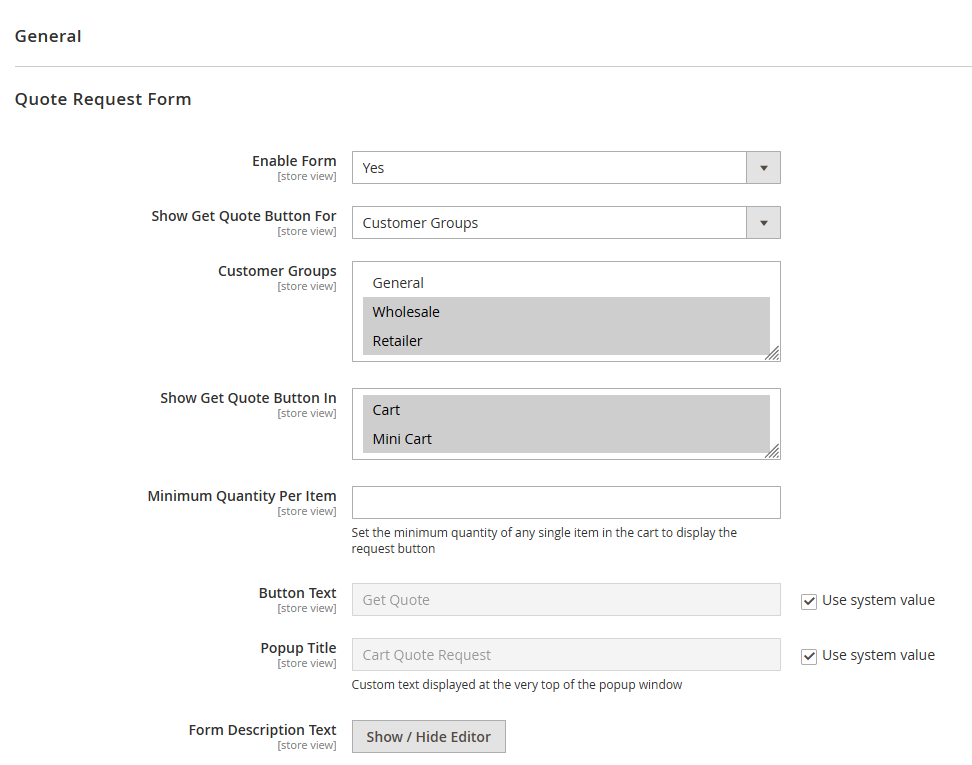
Open Stores → Configuration → MageMe → EasyQuote → General:
- Enable EasyQuote: set to Yes.
- Allowed Customer Groups: hold Ctrl/Cmd to multi-select. Pick only the groups that should see the quote button (e.g. Wholesale, Dealers). Leaving this empty means “all groups”.
- Allow Guest Quotes: set to No if you want to force account creation before quoting. This is the safer default — guest quotes are hard to follow up on without contact information.
- Button Position: choose where the quote button appears (next to Proceed to Checkout, under the cart totals, or both).
- Button Label: defaults to “Request a Quote”. Change if your store uses different wording (“Get Custom Pricing”, “Request Proposal”).
Save the configuration and flush the full-page cache. Test in an incognito window: the button should appear (or not) for the customer groups you configured.
Set up email notifications and templates
When a quote is submitted, two emails need to go out: one to the admin (so sales knows to review it) and one to the customer (confirmation). EasyQuote ships with default templates for both, but you should customise them for brand consistency.
Go to Stores → Configuration → MageMe → EasyQuote → Email:
- Admin Recipient: the email address that receives new-quote notifications. Use a shared mailbox (
quotes@example.com) not a personal one — you don’t want the only recipient to be on vacation when a big quote arrives. - Email Sender: pick the store contact (usually “Sales”).
- New Quote Admin Template: defaults to the plain EasyQuote template. To customise, go to Marketing → Email Templates → Add New Template, load the EasyQuote - New Quote (Admin) default, edit the HTML, save, then select it in the configuration.
- New Quote Customer Template: same process for the customer-facing confirmation.
- Quote Proposal Template: used when you send a proposal back to the customer after negotiation.
Test the email flow: submit a quote from the storefront, check that both emails arrive, and verify the product names, prices, and quote-view links render correctly.
Manage quotes in the admin: review, negotiate, approve
All incoming quotes appear in Marketing → EasyQuote → Quotes, in a grid that looks and behaves like the Magento Orders grid. Each quote has a status, a customer, a product list, a subtotal, and a lifecycle.
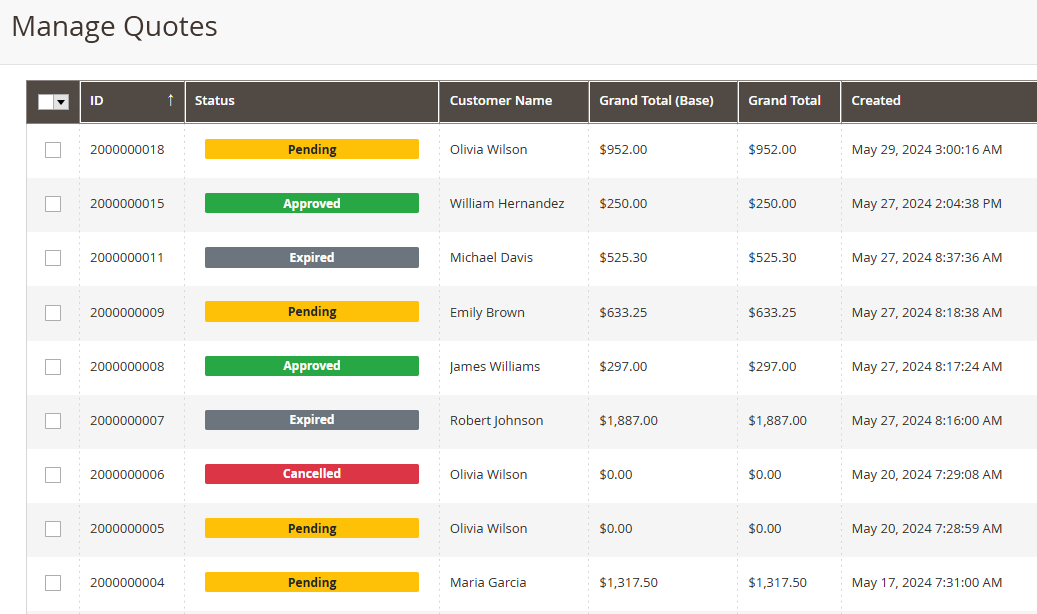
The standard quote lifecycle is:
New
Quote just submitted. Nothing has been done with it yet. The admin has been notified by email.
In Review / Pending
Sales is working on the quote. Internal notes can be added, line items edited, discounts applied.
Proposal Sent
The customer has been emailed a proposal (PDF or inline). The ball is back in their court.
Approved → Order
Customer clicked the approve link. The quote converts to a real Magento order with the negotiated price and proceeds through normal fulfilment.
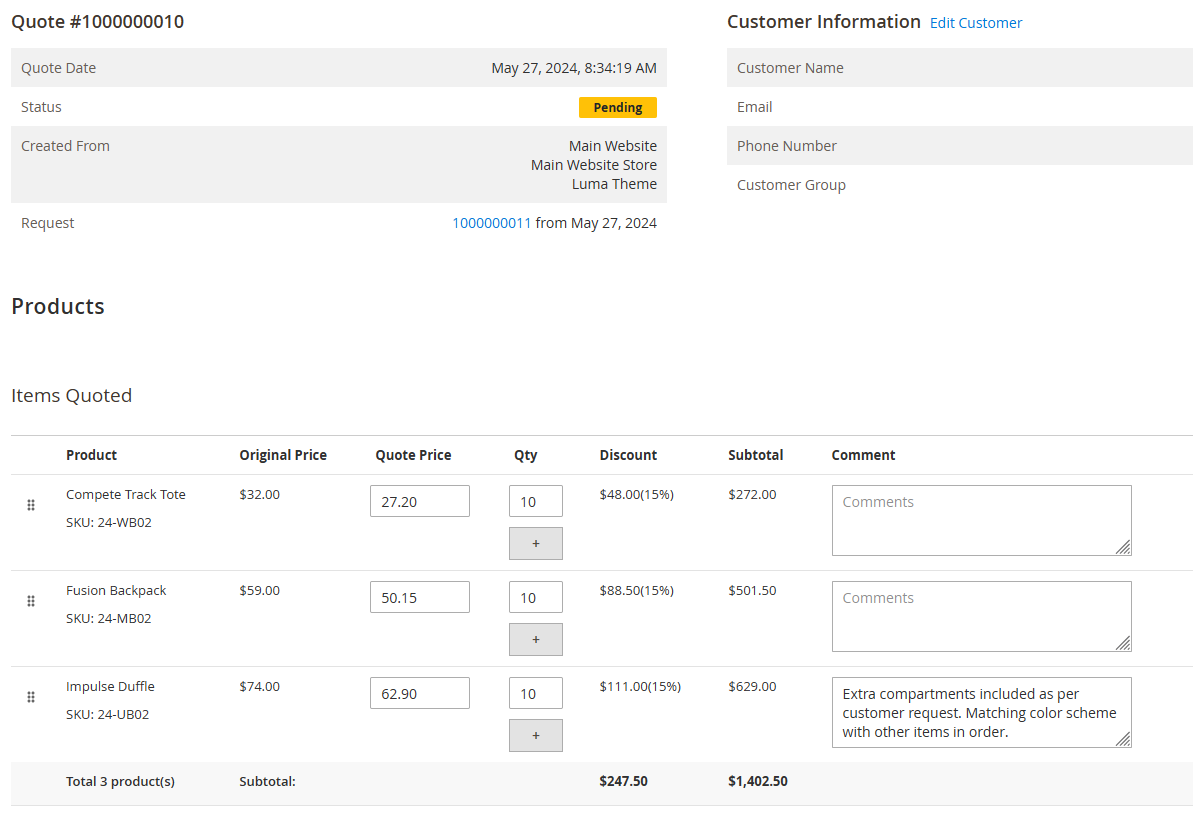
To negotiate a quote:
- Click the quote in the admin grid to open the detail view.
- Edit line item quantities, unit prices, or add discounts. The subtotal recalculates live.
- Add an internal note (visible only to admin) with context for other team members.
- Add a customer note (visible in the proposal) explaining the pricing.
- Click Send Proposal. EasyQuote generates a PDF proposal (if enabled) and emails it with a secure approval link.
When the customer clicks approve, EasyQuote converts the quote to a real Magento order. All standard Magento flows (invoicing, shipping, refunds, order emails) work as usual — from that point on, the quote is indistinguishable from any other order.
Advanced features: tier pricing, proposals, quick checkout
Once the basic flow is working, three advanced features significantly improve the buyer experience and close rates:
Tier pricing inside the proposal
For quote requests that span multiple quantity brackets (“100 units at €12 each, 500 at €10, 1000 at €9”), EasyQuote v1.4+ lets you add tier pricing rows inside the proposal. The customer sees all tiers and picks the quantity they want before approving. This replaces the back-and-forth of sending multiple email quotes and converts more deals. See the EasyQuote v1.4 tier pricing release notes for setup details.
PDF proposal generation
EasyQuote can generate a branded PDF proposal with your logo, store details, line items, tax breakdown, and an approval button. Configure the template under Stores → Configuration → MageMe → EasyQuote → Proposals. The PDF is attached to the proposal email and stored in the quote record for audit.
Quick Checkout Links
Instead of forcing the customer to log in, review the quote, and click approve (three steps), EasyQuote can send a Quick Checkout Link: a single URL that takes them directly to a pre-filled checkout with the negotiated price applied. One click from email to order confirmation. See the EasyQuote v1.2 quick checkout release notes for setup.
Combine EasyQuote with HidePrice and WebForms
EasyQuote handles the quote lifecycle, but two common B2B requirements need help from other extensions:
Hide prices from the wrong customer groups
By default, prices are visible on the storefront — quotes are for negotiating, not hiding. If you also need to hide prices from guests or retail customers entirely, pair EasyQuote with MageMe HidePrice. HidePrice controls who sees the price; EasyQuote handles the quote request. Together they give you a full “login to see prices, request a quote to negotiate” flow. Our Hide Prices in Magento 2 guide walks through the HidePrice side of this setup.
Collect custom fields with each quote
EasyQuote captures the standard fields (name, email, company, phone, comment). If your quote process needs custom fields — project timeline, delivery address, file upload with technical drawings, terms acceptance — add a MageMe WebForms form to the quote submission step. The form is embedded in the quote request UI and the submitted data is attached to the quote record in the admin.
Key takeaways
- Pick the native-cart approach first. For 90% of B2B stores, letting customers use the standard Magento cart with a “Request a Quote” button is the simplest and highest-converting flow. Separate-cart and form-based approaches are edge cases.
- Scope quote visibility to customer groups. Showing the quote button to everyone (including retail guests) confuses buyers and dilutes the retail funnel. Enable it only for Wholesale / Dealer / Contractor groups.
- Customise the email templates early. The default templates are functional but generic. A quote proposal is a sales document — invest ten minutes in the branding before your first real quote goes out.
- Use tier pricing inside proposals. Multiple quantity brackets on one proposal convert better than three separate quotes. This is the single feature that separates serious B2B RFQ from basic “email me a price” workflows.
- Quick Checkout Links are the close-rate hack. The fewer clicks between proposal and order, the higher the conversion. A single email → order flow beats any multi-step approval process.
Frequently asked questions
You can add RFQ to Magento 2 Community with a third-party extension like MageMe EasyQuote. Adobe Commerce B2B ships its own quote module, but it’s tied to the Enterprise licence. For Community stores and smaller B2B operations, EasyQuote provides the same lifecycle (cart, negotiation, proposal, approval, conversion) at a one-time €179 price without an Adobe Commerce licence.
With EasyQuote, yes. The customer adds products to the standard Magento cart and chooses between “Proceed to Checkout” (immediate purchase) and “Request a Quote” (negotiated). Other RFQ extensions use a separate quote cart, which forces the customer to choose before adding products. The native-cart approach is simpler and better suited to mixed retail+B2B stores.
Yes. In EasyQuote’s configuration (Stores - Configuration - MageMe - EasyQuote - General), select which customer groups see the quote button. A typical setup is Wholesale + Dealers + Contractors enabled, and guest + retail disabled. Guests can be optionally forced to log in before requesting a quote.
Yes, as of v1.3. Configure the PDF template under Stores - Configuration - MageMe - EasyQuote - Proposals. The generated PDF includes your store branding, line items, tax breakdown, and an approval button. It’s attached to the proposal email and stored in the quote record for audit.
Approval converts the quote to a real Magento order with the negotiated price applied. From that point, all standard Magento workflows apply: invoicing, shipping, refund, order confirmation emails. The only difference from a regular order is the quote audit trail, which stays linked in the admin for future reference.
Yes. EasyQuote v1.4+ is Hyvä CSP-compliant and natively compatible with Breeze, Luma, and headless/PWA setups via GraphQL. The cart and checkout integrations use the theme’s native components, so the quote button inherits your theme’s styling automatically.
Yes. Inline proposals (without PDF) are the default; the customer sees the proposed pricing in an email and on a secure quote-view page. PDF generation is optional and can be turned off under the proposal configuration. Many B2B merchants use inline proposals for speed and PDF proposals only for contracts that need a formal signable document.
EasyQuote uses the native Magento cart; Cart2Quote creates a separate quote cart. EasyQuote is €179 one-time; Cart2Quote starts at €249. EasyQuote is CSP-compliant for Hyvä; Cart2Quote requires theme workarounds. For a full feature-by-feature comparison across all five major vendors, see our best Magento 2 Request for Quote extensions roundup.
Tried this guide? Share your experience!